How ABMeter Evaluates Experiments
What the numbers on an effect card mean, how they are computed, and how to read them
What ABMeter computes
For each metric, ABMeter reports one set of numbers per audience. The control audience is the baseline. Every other audience is compared against it.
- For every audience: the number of users with a value for the metric, the average metric value per user, and the standard error of that average.
- For every non-control audience: the absolute lift, the relative lift, the 95% confidence interval of the absolute lift, and the p-value, all against control.
- For the trend chart: the user count, mean and standard error per audience for each time bucket.
Reading the Effects view
This is the Effects view of the demo experiment demo-trial-activation-test. It tests whether a green trial button labelled "Start Free Trial" gets more users to start a trial. The experiment splits its users into two audiences of 50% each: control sees the current button, and green-action sees the new one. The metric is demo-trial-activation-rate: the share of exposed users who clicked the trial button. The view uses a 7-day attribution window. The numbered list below explains each marker in the screenshot.
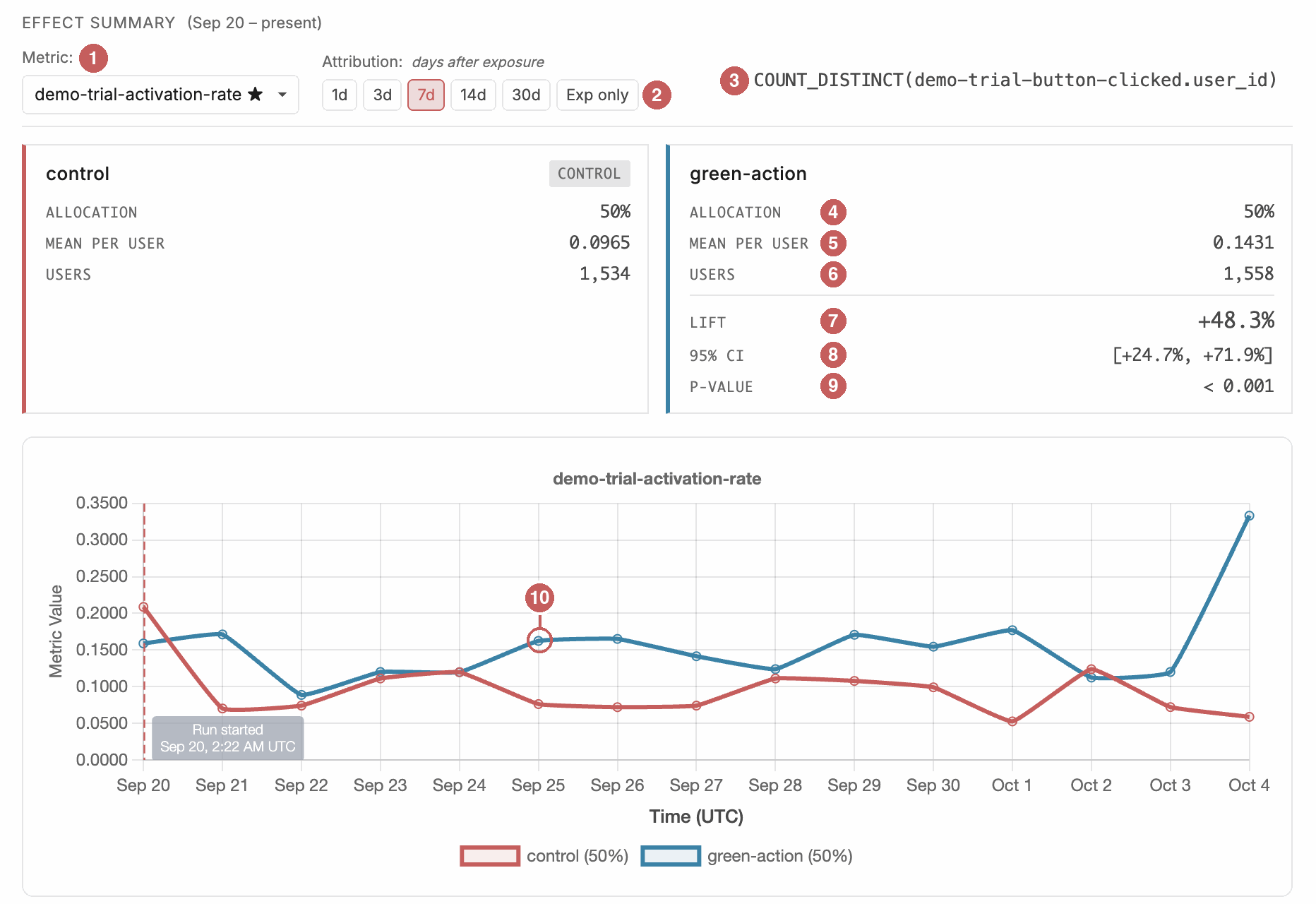
- Metric. Switch to any of your metrics and the results recompute right away, for every user exposed so far. The metric does not have to be attached to the experiment first. The star marks the experiment's primary metric. Still choose the metric that decides the experiment before you start: picking the best-looking metric afterwards inflates false positives, just as checking too often does.
- Attribution window. How many days after each user's first exposure their events count. "Exp only" counts events between the experiment start and end. See the attribution window section below.
- Metric formula. The formula that ABMeter evaluates once per exposed user. Here it is 1 if the user clicked the trial button and 0 if not.
- Allocation. The share of experiment traffic assigned to this audience. It comes from the experiment settings, not from the evaluation.
- Mean per user. The metric value of each user, averaged over the users in this audience. Here each user has 1 or 0, so 0.1431 means that about 14% of the green-action users clicked the trial button.
- Users. Users first exposed to this audience during the experiment who have a value for this metric. For a count metric like this one, that is every exposed user.
- Lift. Relative lift against control: (0.1431 - 0.0965) / 0.0965, shown as a percentage.
- 95% CI. The 95% confidence interval of the absolute lift, divided by the control mean to show it as a percentage. This treats the control mean as exact, so it is slightly narrower than a full interval for the relative lift. The API returns the interval in the metric's units; see below.
- p-value. Two-tailed p-value of the z-test. The UI shows "< 0.001" for anything smaller than 0.001.
- Chart. One point is one cohort: the users first exposed on that day, and their metric value within their attribution window. The circled point is the green-action users first exposed on Sep 25.
The same result from the MCP tool
The web UI, the REST API and the evaluate_experiment_effects MCP tool return the same numbers. This is the MCP result for the experiment in the screenshot, trimmed; ... marks omitted fields.
Call
evaluate_experiment_effects(
  experiment_slug: "demo-trial-activation-test",
  space_slug: "demo-space",
  metric_slug: "demo-trial-activation-rate",
  attribution_window: "7d"
)
Result (trimmed)
{
  "metadata": {
    "metric_slug": "demo-trial-activation-rate",
    "metric_formula": "count_distinct(demo-trial-button-clicked.user_id)",
    "attribution_window_days": 7,
    ...
  },
  "stats_by_audience": {
    "control": {
      "is_baseline": true,
      "n": 1534,
      "mean": 0.0965,
      ...
    },
    "green-action": {
      "is_baseline": false,
      "n": 1558,
      "mean": 0.1431,
      ...
      "comparison": {
        "baseline_audience": "control",
        "absolute_lift": 0.0466,
        "relative_lift": 0.4829,
        "p_value": 0.0001,
        "confidence_interval_95": [0.0238, 0.0694],
        ...
      }
    }
  },
  "time_series": [
    ...
    {
      "time_bucket": "2026-09-25T00:00:00.000+00:00",
      "audiences": {
        "green-action": { "n": 117, "mean": 0.1624, ... },
        ...
      }
    },
    ...
  ]
}
The result holds the same numbers as the UI. Three of them are displayed differently:
-
Lift. The UI shows +48.3%.
relative_liftis the fraction0.4829. -
95% CI. The UI shows the interval as a percentage of the control mean: [+24.7%, +71.9%].
confidence_interval_95is in the metric's units:[0.0238, 0.0694]. Divide by the control mean, 0.0965, to get the UI values. -
p-value. The UI shows < 0.001.
p_valueis0.0001, rounded to 4 decimal places like every number in the result, so a very small p-value comes back as0.0.
Allocation is not part of this result; it comes from the experiment's audience settings. relative_lift is null when the control mean is 0, and the UI then shows no 95% CI.
How: per-user values and a two-sample z-test
ABMeter evaluates the metric formula once for each exposed user. A conversion is 0 or 1. Revenue per user is that user's total revenue. A user with no matching events counts as 0 for count and sum metrics. Some users have no value at all: for a ratio metric, a user whose denominator is 0, and for an avg, min or max metric, a user with no matching events. Such users are left out. Each audience is then summarised by three numbers over the users with a value: the user count n, the mean x̄ and the sample variance s². For count and sum metrics, n is every exposed user. Leaving users out has a side effect. Suppose a variant turns extra users into buyers who spend less: its average order value drops even though it earns more per user, because its buyers are no longer the same kind of people as control's buyers. So decide on a metric that every exposed user has a value for, such as revenue per user, and use average order value only to explain the result.
The comparison is a two-sample z-test with Welch's standard error. It does not assume equal variances or equal group sizes. With T for a treatment audience and C for control:
This works for conversions and revenue alike. By the central limit theorem, the average of per-user values is approximately normal once each group is large, whatever the distribution of the per-user values. For a binary metric this is close to the familiar two-proportion test, but it uses each group's own sample variance instead of a pooled one, so the z and p differ slightly.
Every number on the effect card comes from each audience's n, mean and variance, so you can check it by hand with the formulas above. The Statistics of A/B Tests: The ABMeter Book has the math behind the method.
Small groups. ABMeter reports a comparison from 2 users per group upward, but the normal approximation needs hundreds or thousands of users. With few users, or with a heavily skewed metric such as a handful of large purchases, the p-value tends to be too small and the interval too narrow, so the result looks more certain than it is.
Before you build an experiment, put your numbers into Can You Test This Yet?. If the test would take longer than you can wait, the page says what to do instead.
When ABMeter cannot run the test, the comparison carries an error instead of a p-value:
insufficient_data: a group has fewer than 2 users with a value, for example a ratio metric where almost every user has a zero denominator.zero_variance: within each group all users have the same value (the two groups can differ), so the standard error is 0 and no test is possible. The lifts are still returned; the z-score, p-value and interval are not.
Attribution window and the three time windows
ABMeter treats every event in a metric as an outcome of the exposure: something the variant could have caused. So define metrics from events that follow the exposure, such as clicks and purchases, not from events that lead to it, such as the visit in which the user was exposed.
Three separate time settings shape what you see. The experiment period and the attribution window decide which users and events count; the chart granularity only changes how the chart is sliced.
- Experiment period. From the moment you start the experiment to the moment you stop it. Only users first exposed in this period are counted.
- Attribution window.
How long after a user's first exposure their events count. With an
Ndwindow (the UI offers 1d, 3d, 7d, 14d and 30d), each user's events count if they happen within N days of that user's own first exposure, even if that runs past the experiment end. The window starts at the exposure itself, so events just before it do not count. With "Exp only" (no window), events count if they happen between the experiment start and end, for everyone. That includes events a user had before their own first exposure, for example on day 1 for a user first exposed on day 5. Those events add noise and pull the lift towards 0. - Chart granularity. Hour, day, week or month. It controls how the trend chart is sliced and never changes which events count.
A short window (1 day) suits immediate effects such as a purchase right after the change is shown, but it misses delayed effects. A long window (7 to 14 days) catches delayed effects such as considered purchases, but it adds events that the change did not cause.
The trend chart is by cohort. Each point is the group of users first exposed in that time bucket, and the value is how they performed inside their window. The latest buckets of a running experiment are still filling in, so they are noisier than they will end up, and lower for a metric that builds up over time. The same applies to the summary numbers: while the experiment runs, they include recently exposed users whose window has not ended yet. For a metric that builds up over time, such as purchases within 7 days, those users pull the averages down until their window closes.
How to read the result
"Significant" means p < 0.05. That is the same as saying the 95% confidence interval excludes 0, or, to rounding, that |z| > 1.96. It is a statement about chance, not about the size or business value of the effect.
Read the interval, not only the p-value. A wide interval, for example one that runs from a clear loss to a large gain, means wait for more data: the true effect could be a loss or a large win.
Fixed horizon. The test assumes you decide the duration or sample size before you start and read the result once, at the end. If you check every hour and stop at the first p < 0.05, false positives rise several-fold. ABMeter does not do sequential testing or always-valid p-values. To choose the length, see Can You Test This Yet?.
Several treatments. Each treatment is compared with control on its own, and ABMeter does not correct for the number of comparisons. With three variants, expect more false positives than the 5% a single comparison gives.
A running experiment shows live numbers so that you can check that data is flowing, not so that you can stop early. The Effects view is cumulative and has no date filter by design, because filtering by date invites picking the window that looks best.
What the AI assistant adds
ABMeter returns numbers and never a verdict, a winner or a recommendation. The UI, the REST API and the evaluate_experiment_effects MCP tool all return the same output.
The interpretation comes from the assistant reading these numbers together with your business context: whether there are enough users, whether the lift is worth shipping, and how long to keep running. To connect an assistant, see Setup MCP Connection. To fetch the numbers yourself, see the API Reference.
See also: API Reference · Setup MCP Connection